Your Ad Here

Free Articles: Free Online Articles Directory
Automotive | Business | Computers | Entertainment | Finance | Food | Health | Home and family | Internet


Your Ad Here
Free Articles


Legal | Science | Self Improvement | Shopping | Society | Sports | Technology | Travel | Writing


http://site-free-articles.blogspot.com

Showing posts with label XP Tweaks. Show all posts

Thursday, May 22, 2008

Microsoft Released - Windows Feature Comparison (XP vs Vista)

microsoft-logo No more wondering about what new features Vista SP1 got. Microsoft just released the Windows Feature Comparison (The White Paper). It is a pdf file which helps you to compare the features of Windows OS. You can check the capabilities of Windows XP with SP3 and Windows Vista with SP1. Capabilities like security, management, deployment, mobility, and productivity.

Download

Windows Feature Comparison

Thursday, May 15, 2008

Microsoft Virtual PC 2007 SP1 Now Available to Download

Microsoft just releases the Virtual PC 2007 SP1 and is now available to download for free. Microsoft Virtual PC 2007 lets you run multiple operating systems on a single machine. You can switch between virtual machines with one click. Use virtual machines to run legacy applications, provide support, train users, and enhance quality assurance.

The Virtual PC requires a 400 MHz Pentium-compatible processor (1.0 GHz or faster recommended), and requires approximately 35 MB of disk space.This Virtual PC runs on Windows Vista Business, Windows Vista Enterprise, Windows Vista Ultimate, Windows XP Professional, or Windows XP Tablet PC Edition, Windows Vista SP1 (Enterprise, Business, Ultimate), Windows XP SP3.

via: WinBeta

Friday, April 11, 2008

Registry Hack to Keep Similar Taskbar Buttons always Grouped

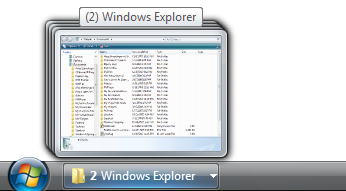
The Windows built-in feature of Grouping Similar Taskbar Buttons is nice, it helps you to remove clutter from your Taskbar. This feature groups your Similar Taskbar buttons in one when your Taskbar starts to get full it will start grouping applications together to conserve space.

taskbar-group

For Instance, If you have opened 10 or more Internet Explorer windows at a time, it will show you only one window in the Taskbar, if you have the grouping feature enabled.

The only thing is that it only works when the Taskbar has filled up with the Windows. The CyberNet blog offers a customizable registry tweak that sets this feature to Group Similar Taskbar buttons with two or more windows open.

Not Everyone use this feature, but for those people who use it this hack can be a real helper. You can download a registry fix file from CyberNet Blog, or if you are an Advanced user and know your way around the Registry you can make the change at the following key.

You’ll need to navigate to this location:

HKEY_CURRRENT_USER \ Software \ Microsoft \ Windows \ CurrentVersion \ Explorer \ Advanced

Then you’ll need to create a new DWORD (32-bit) value called TaskbarGroupSize there. A value of “0″ will disable the feature, while a larger numerical setting (2 or higher) will initiate the grouping when that number of similar windows is open.

CyberNet via Lifehacker

Sunday, March 30, 2008

5 Ways to Know your Systems Uptime

SystemUptime

Uptime is a measure of the time a computer system has been "up" and running.

The system uptime is very important for system administrators. Many times normal users like to keep the track of their PC.

Here I am showing 5 ways (Some Commands and Some Very Small and Free Utilities) to know How long has Your System been Running without Reboot.

  • Using systeminfo command

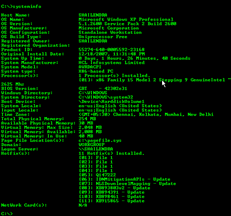
The systeminfo command tells us all about a computer system. Here you can get the system uptime as well as the original date and time of the OS installation. This command works on Windows XP Pro. Not tested in XP Home (Some users said it wont work in XP Home).

  1. Click on Start > Run
  2. Type CMD (Will open Command Terminal)
  3. Type systeminfo
  4. Find system uptime there, you will also get install date and time above the uptime

System Uptime

In the above screenshot, you can see the format of the system uptime is Days, Hours, Minutes, Seconds.

  • DC Uptime

DC Uptime

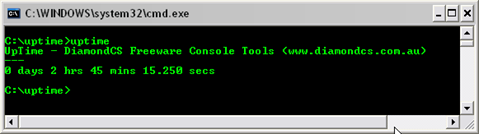
DC uptime is a simple and very small utility command line tool designed to view how long your computer has been running, accurate to the second.

This tool support almost all Windows OS.

Download Here

  • Easy HR Computer Uptime

Easy HR Computer Uptime is a simple tool designed to show you the computer name, and how long your computer has been running (uptime) since it was last rebooted. Easy HR Computer Uptime also tells you the current user name and the current running Operating System.

This tool supports Windows 98, Me, XP

Download Here

  • System Uptime Monitor

System Uptime Monitor

This is a small GUI tool which shows the System Uptime, the System Startup Date and Time. This tool has another feature that you can schedule any task like Shutdown, Logoff, Restart, Hibernate, Alert or any specific task you want to execute based on the System Uptime.

This tool supports Windows 2000, Server 2003, XP, Vista

Download Here

  • System Uptime

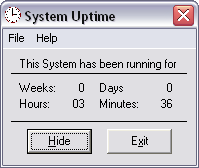
System Uptime2

This small GUI utility will display your current System Uptime in Weeks, Days, Hours and Minutes. There is no install/uninstall. Download XP_SystemUptime.zip and extract the EXE file to your hard drive. Create a shortcut to XP_SystemUptime.exe in your Startup folder, or anywhere you desire. To remove System Uptime, simply delete the EXE file and any shortcut you create. This application is freeware.

Windows XP (may run on Windows 2000). Requires VB6 Runtime Library (installed on XP by default).

Download Here

If you know more utilities for System Uptime please let us know. You can send it through comments.

Saturday, March 29, 2008

Make your Friends Fool by creating a Harmless Virus


How To Make A Little Virus (this Isn't Actualli A Relay Virus Bu - Funny blooper videos are here

This is not a real virus, you are going to create just a shortcut to shutdown.exe file. When someone clicks this file, the computer start the shutdown process and display the text message in a window. You can give any message while shutting down the pc. You can also specify the delay time in shutdown process.

Tuesday, March 25, 2008

Microsoft Released another Version of Windows XP SP3

Microsoft on Tuesday released another version of Windows XP Service Pack 3, but the software remains in the testing phase.

"Windows XP SP3 RC2 Refresh was made publicly available today via Microsoft Download Center," Microsoft said in a statement. "We've made this release candidate available in order to receive further user feedback prior to the release of Windows XP SP3."

[via: CNET]

Saturday, March 22, 2008

2 Ways to Rename Recycle Bin in Windows XP

Recycle Bin

I have told you about How to Hide/Un-Hide Recycle Bin Icon on Desktop in XP. Most peoples don't want that annoying Recycle Bin Icon on there Desktop. But some of you, like me, want to leave (give it a chance) the Recycle Bin Icon on Desktop but don't want the traditional name Recycle Bin.

Here I am listing 2 ways to Rename the Recycle Bin Icon. You can rename the Recycle Bin to what ever you want like Trash, Garbage, Dust Bin etc.

To rename the Recycle Bin all you have to do is to make some changes in the registry (regedit.exe) file. It is highly recommended that you should backup your registry. This Blog's Author will not be liable if any damage occurs.

1) This is the first way you can rename Recycle Bin

1. Click Start
2. Click Run
3. Type regedit and hit ENTER
4. In the registry editor go to the following key:

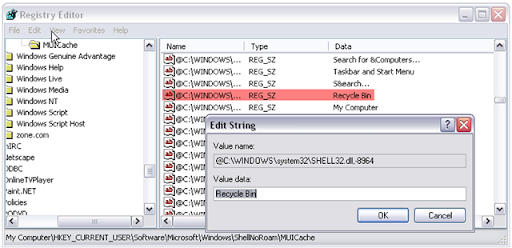
HKEY_CURRENT_USER\Software\Microsoft\Windows\ShellNoRoam\MUICache

5. Find and Double click on the following value:
@C:\WINDOWS\system32\SHELL32.dll,-8964

Change Recycle Bin

6. Change the value to whatever you wish.
7. Click OK and close out regedit
8. Click on a blank area of the desktop and select refresh from the context menu.
9. After the screen refreshes, you recycle bin will be renamed to whatever you decided.

[via Tech-Recipes]

2) Here is the second way to Rename Recycle Bin

This trick is somewhat rough, hence it is optional. I used this trick and found my Recycle Bin renamed. If the first trick fails, you can do this at your own risk. This Blog's Author will not be liable if any damage occurs. It is highly recommended that you should backup your registry.

1. Click Start > Run
2. Type regedit
3. Press Ctrl+F to open search box and type Recycle Bin and search
4. Change what ever you found (Value/Data/Key) with Recycle Bin to Desired Name
5. Press F3 to continue searching for 'Recycle Bin'
6. Repeat step 4 until you have finished with searching and changed all values to its new name.
7. Close regedit and refresh desktop, You will find the Recycle Bin is Renamed.

Want More Tricks & Hacks of Windows XP

Tuesday, March 18, 2008

Find out Is Your Computer Secretly Connecting to Internet

Use this simple DOS command from Digital Inspiration to know Is Your Computer Connecting To Websites Without Your Knowledge. There is always a risk to download and install any third party software from Internet because they may contain malware or spyware programs which gathers your personal data and when you connect to Internet it send out the data by connecting to Internet without your knowledge.

Using this command you will be able to track down such suspicious activities. You will see which program is connecting to Internet, If you found this program suspicious you can uninstall it then.

Use the following steps -

  1. Type cmd in your Windows Run box.
  2. Type "netstat -b 5 > activity.txt" and press enter.
  3. After say 2 minutes, press Ctrl+C.
  4. Type "activity.txt" on the command line to open the log file in notepad (or your default text editor)

The file activity.txt will have a records of every program that has connected to Internet within last couple of minutes. This file also show you to which website the process has made a connection. With this command you can track down chatting programs, email programs and download managers.

I am not sure about this command can track down the OS update process.

Saturday, March 8, 2008

Music Created using Windows XP and 98 Sound Effects Only

This is a music video created by a guy. This video is made up of Windows XP and Windows 98 sound effects only. The video is 2.29 in length. It is divided into two parts. The first part contains music, 1.35 in length and another part shows how he created the music.

The program he used to combine all the sounds together in the respective manner to form this music is MODPlug Tracker.

The MODPlug Tracker is free, powerful software that enables you to easily create music on your Windows-based PC using instruments freely available on the internet.

The music sounds something like a Arabic Video Game to me. Which I used to play in my childhood. What do you think.

[via: Geekologie]

Thursday, March 6, 2008

Blue Screen Of Death screensaver from Microsoft

BSOD
photo by blue98xp

What is BSoD

BSoD - Blue Screen Of Death is a error screen, totally blue colored. This screen pop-ups on an NT system whenever something has gone terribly wrong. That's why people say One of the most feared colors in the NT world is blue.

Bluescreen is a screen saver by Microsoft that not only authentically mimics a BSOD, but will simulate startup screens seen during a system boot. Virtually all the information shown on Bluescreen's BSOD and system start screen is obtained from your system configuration - its accuracy will fool even advanced NT developers.

This Bluescreen runs on Windows NT 4.0, Windows 2000, Windows XP, Windows Server 2003 and Windows 9x (it requires DirectX).

So, use Bluescreen to amaze your friends and scare your enemies!

Download Bluescreen

Saturday, March 1, 2008

IE7 Pro - Add Firefox features to Internet Explorer

logo IE7 Pro

If you like Firefox add-ons and wish if you could do these tasks in Internet Explorer then this IE7 Pro add-on is for you. This is a must have add-on for Internet Explorer lovers who just want to work with IE. This add-on includes lots of features to make your IE browser more secure, customizable and useful.

The main problem I don't like in Internet Explorer is, when I open many of tabs or windows it crashes immediately. The Firefox is much better than IE. It gives much better speed, it provides security and is customizable. With themes you can change the way it looks plugins and add-ons extends it's usability.

IE7 Pro offers some features in Internet Explorer so you can make you can make your browsing secure and fast.

Tabbed Browsing Management

Spell Check
IE7Pro Spell Check will check any text you enter and alert you to possible errors by adding a red underline to any potentially misspelled words.

Inline Search
Adds the inline search bar like firefox has, finds as you type, use the F3 and Enter Key to cycle between multiple results, highlight all results.

Super Drag Drop
With Super Drag and Drop enabled, you can open new links by simply dragging and dropping the link on the page. You can also Drag and Drop to search selected words with the default search engine or save the selected photo when Shift is held down.

Crash Recovery
Crash Recovery automatically restores all opened pages after a crash happened.

Proxy Switcher
Different internet connections do often require completely different proxy server settings and it's a real pain to change them manually.

Mouse Gesture
Mouse Gesture allow the user to execute commonly performed tasks (open/close a tab, go back, go forward , print , scrolling page etc.) by drawing a simple symbol on the screen.

AD Blocker
Blocks all forms of advertising, including Flash ads, rich media, fly-ins, slide-ins, pop-ups, pop-unders, spyware and adware ads, and messenger ads.

Greasemonkey like User Scripts platform
IE7Pro Script is to Internet Explorer7 as Greasemonkey is to Firefox. It lets you remix the Web via scripts.

Webpage Capturer
Flexible and easy-to-use tool that converts html page from any URL to image. It captures the whole web page's content into JPG, BMP , GIF , PNG or TIFF on the fly.

Tab History Browser

Web Accelerator

Flash Block

User Agent Switcher

User Plug-ins and many more power packed features.

This add-on is compatible with Windows NT /2000 /XP /2003 /Vista. Supports IE 6 & 7. IE7 Pro is also available in many languages. I think this tool is worth a try, what you think.

Download IE7 Pro | IE7 Pro Blog

Saturday, February 9, 2008

Find Windows XP Product Key in 10 seconds

This video will guide you to obtain Windows XP Product Key from the Installation CD.

XP PRODUCT KEY IN 10 SECONDS

XP CD KEY IN 10 SECONDS - video powered by Metacafe

Sunday, February 3, 2008

Add the programs you want to the Control Panel

A small utility called Your CPL will allow you to add programs of your choices to your Control Panel. This utility is compatible with Windows 98, ME, 2000, XP. This utility comes is a package containing four files. You have to move YourCPL.cpl and YourCPLconfig.txt to the Windows system folder. for instance in Windows XP that both files need to be moved in to system32 folder.

The file YourCPLconfig.txt contains the information of those programs which are to be added to Control Panel. By default you will find a example entry of Windows Registry Editor in this file for your convenience.

The format of adding program to the file is given below

Path to program[press Tab key]Icon caption[press Tab key]Descriptive text

Example of adding Registry Editor

c:\windows\regedit.exe Regedit Registry editor

You may add Command line arguments if you want by pressing tab after Descriptive Text. Each application has to be added in separate line.

Control Panel

In the above screenshot you can see two new application shown by arrows which are added with the help of this utility.

[via ghacks] Download Your CPL

Why do text looks too blurry in Internet Explorer 7?

IE7 Logo Fonts in Internet Explorer are not displaying as clear as you want (they look blurry)?, it is all because of the ClearType feature of Internet Explorer 7.

I found, the same problem was appearing in Microsoft Frontpage.


What is ClearType?

ClearType is a subpixel rendering technology developed by Microsoft to improve your readability of text over LCD monitors (Such as Laptop screens or Flat Panel Screens). Sometimes ClearType can appear Blurry on CRT monitors. By default ClearType is turned on in Internet Explorer 7.

How to Turn Off ClearType Feature in IE 7?

Following are the steps to turn off/on the ClearType feature.

  • Goto Internet Explorer, click on Tools menu, then select Internet Options.
  • Then goto Advanced tab, scroll down to Multimedia Section.
  • Unmark the Always use Clear Type for HTML option, Click OK.
  • Restart Internet Explorer.

This will solve your problem, If you need any help please feel free to comment here.

Sunday, January 20, 2008

How to Hide/Un-Hide Recycle Bin Icon on Desktop in XP

recycleIn this post you will learn How to Hide or Un-Hide the Recycle Bin Icon in Windows XP.  Many  people hate this icon, I don't know why, they just don't want to let it appear on their Desktop.

I am explaining two ways from which you can Hide the Recycle Bin Icon and whenever you need it, you can Un-Hide it.

1)     This is the simple way as compare to second one.

From Group Policy Editor we will Hide the Recycle Bin Icon.

  • Click Start, Click Run, Type GPEDIT.MSC, Press Enter
  • On the Left Column Expand Administrative Templates, click on Desktop
  • On the Right Column Find Remove Recycle Bin Icon from Desktop
  • Double click on it, A Property Window will Appear
  • Select Enable option, Press OK.
  • Refresh Desktop, Enjoy!

To Show Recycle Bin Icon on Desktop, Do same steps but instead of Enable select      Not Configured.


2)     This step is somewhat risky, if you done this incorrectly you may have to Reinstall
         your Operating System. This Blog's Author will not be liable if any damage occurs.
         Do it on your own risk or choose the first way.

NOTE : - Backup your Registry File before Proceeding.

Copy the following code into notepad and save it as recycle.reg.

Windows Registry Editor Version 5.00
[HKEY_LOCAL_MACHINE\SOFTWARE\Microsoft\Windows\CurrentVersion\Explorer\
Advanced\Folder\RecycleBinOnDesktop]
"RegPath"="Software\\Microsoft\\Windows\\CurrentVersion\\Explorer\\
HideDesktopIcons\\NewStartPanel"
"Text"="Show Recycle-Bin Icon on the Desktop"
"Type"="checkbox"
"ValueName"="{645FF040-5081-101B-9F08-00AA002F954E}"
"CheckedValue"=dword:00000000
"UncheckedValue"=dword:00000001
"DefaultValue"=dword:00000000
"HKeyRoot"=dword:80000001

  • Double click on the file, click YES, click OK.
  • A new option will be added in the Folder Option.
  • Goto My Computer, then Tools Menu, then Folder Option
  • Select View tab, find Show Recycle-Bin Icon on the Desktop option select it.
  • Press OK, Enjoy!

Sunday, October 28, 2007

How to Disable or Enable Error Reporting in Windows XP

Sometimes a window popup when Application crashes in XP and asks to notify Microsoft about it. So Microsoft can know it and help you to fix it. This option is enabled by default in Windows XP.


You can disable it if you dont want to send the report to Microsoft or if you are not connected to Internet. You can disable this feature or can restrict to specified system or application error.


It is easy to enable or disable error reporting.


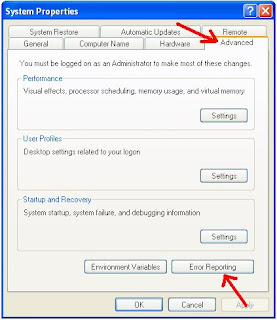
Step 1: Just right click on My Computer icon and click on Advanced tab.


Step 2: Then click on Error Reporting tab.


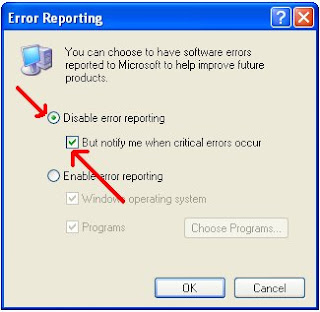
Step 3: Choose Disable error reporting and the option to notify critical errors and press OK.


Related Posts:
How to rename start button in XP
How to Customize Background of Folders and Drives in XP

Friday, April 6, 2007

How to Rename Start Button in XP

You can rename your Windows XP 'start' button through registry or explorer.exe by changing some values. But there is lots of efforts to rename 'start' button through it.

There is a new and simple way to do that without playing with registry or explorer.exe.

A utility called StartBtn Renamer will do it for you.

just download the utility, type the text( you want to give to the start button) in New Lable section and click on 'Rename It!'.

Your 'start' button text has been changed.

If you want more Windows XP Tips,Tricks and Hacks just goto XP Tweaks


[via TechBuzz]

Related Posts:

How to Customize Background of Folders and Drives in XP

How to Disable or Enable Error Reporting in Windows XP

Friday, March 9, 2007

How to Customize Background of Folders and Drives in XP

Ever wondered if you could change the background of your folder and drives.

You can do this!

Just you have to DOWNLOAD a file and place it into the folder or drive that you want to customize.

After downloading, run this program and follow the instructions.

You can safely remove the customizations.